QuickBooks “Could Not Complete the Current Action” PDF Fix
QuickBooks “Could Not Complete the Current Action” PDF Fix
If QuickBooks Desktop throws a “missing component” or “could not complete the current action” error while printing or emailing a PDF, the built-in Tool Hub usually isn’t enough.
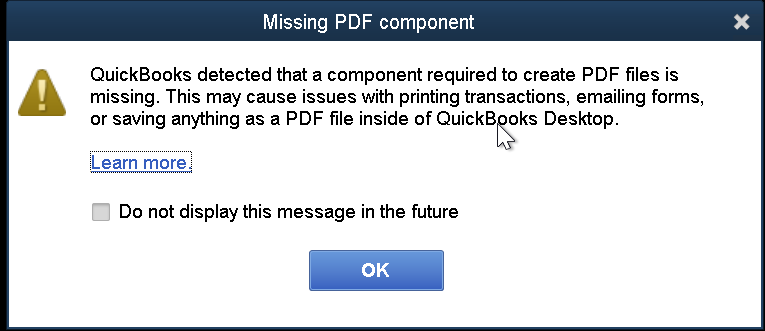
This is almost always a hang-up with the Microsoft XPS Document Writer, which QuickBooks uses as a bridge to generate PDF files.
The Fix: Toggle the XPS Document Writer
Refreshing the Windows feature forces the driver to re-initialize and usually clears the error instantly.
- Press Win + R on the keyboard.
- Type
optionalfeaturesand hit Enter. - Scroll down to Microsoft XPS Document Writer.
- If it is uncheck, check it to turn the XPS writer on.
- Restart QuickBooks and the PDF functions should be restored
- If XPS Writer is already checked, Uncheck the box and click OK (this disables it).
- Close the Optional Feature menu and re-open the menu again, Check the box, and click OK to re-enable it.
- Restart QuickBooks and the PDF functions should be restored.